Create your budget
The first time you open the app, it walks you through three short steps: sign in, create your budget, and add an account. This article covers the second and third.
Sign in first
Section titled “Sign in first”Tap Continue with Google, or enter your email and tap Continue with email for a 6-digit code. The same step signs you in if you already have an account, or creates one if you don’t — there’s no separate sign-up form.
Create your budget
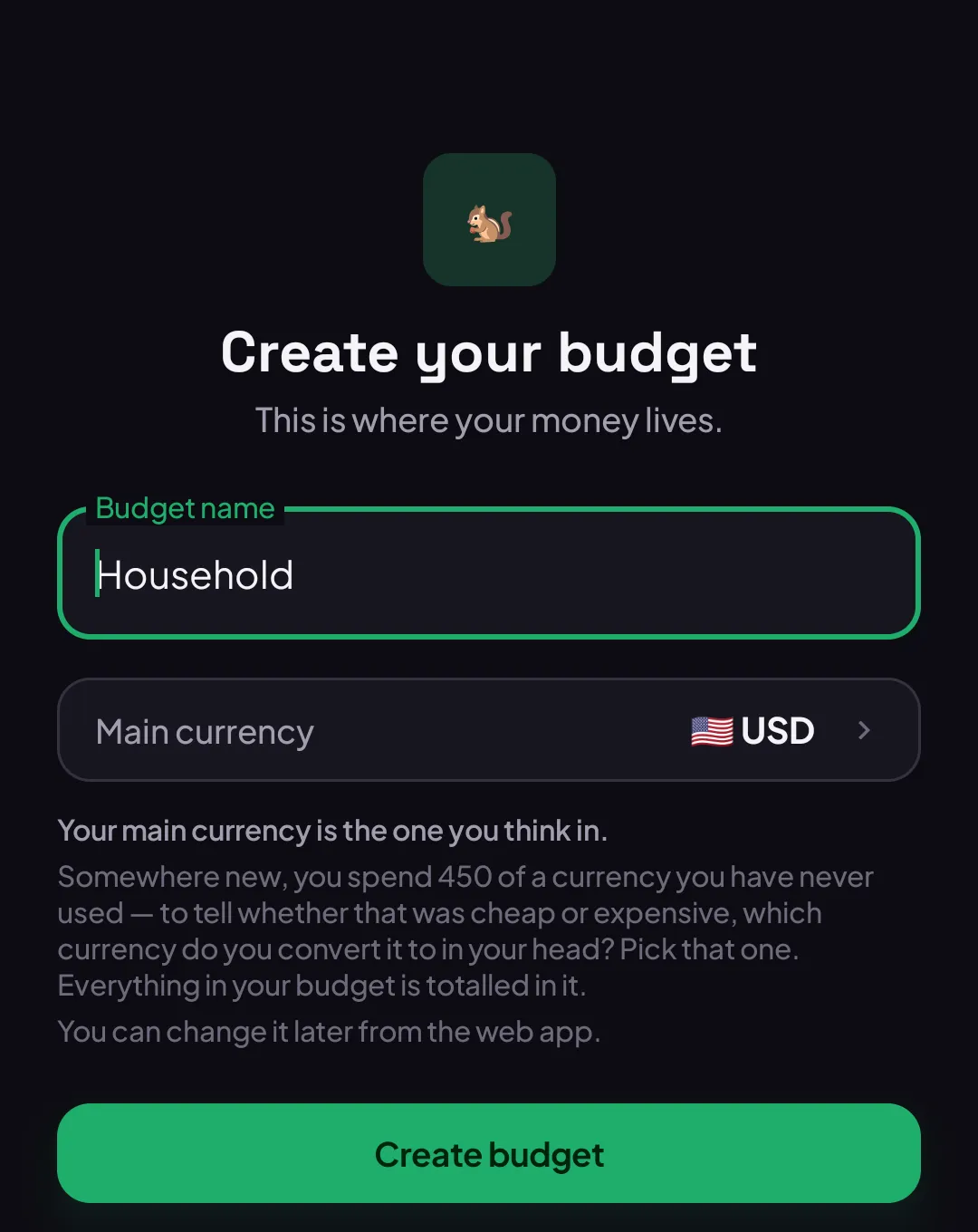
Section titled “Create your budget”- Type a Budget name — anything you’ll recognize later, like “Household” or your own name.
- Tap Main currency and pick the currency you want everything totalled in.
- Tap Create budget.
Add your first account
Section titled “Add your first account”Right after your budget is created, you’re asked to add where your money actually sits — see Account types: Bank, Cash, or Card for what each option means. Add one, and you’ll see it appear in the list:
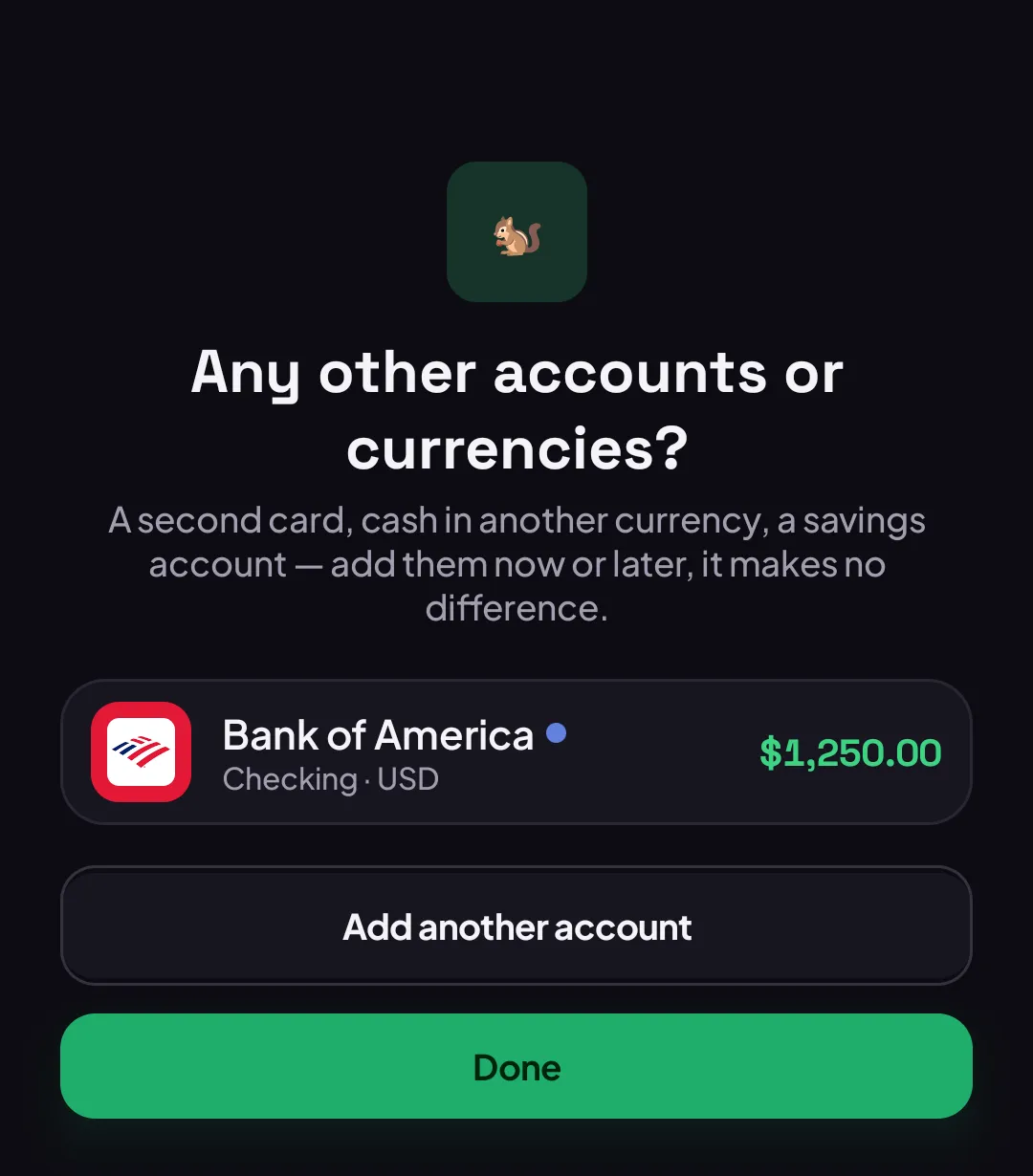
Tap Add another account to add more now, or Done to head into your budget. Either way, you can always add more accounts later.
Good to know
Section titled “Good to know”- Your main currency isn’t locked in stone — you can change it later, but only from the web app, not from mobile. See Understanding your budget currency for what changing it does and doesn’t affect.
- Skipping the account step is fine. You can add accounts any time from Budget.
- One budget per sign-in for now — there’s no “join a shared budget” flow on mobile yet.